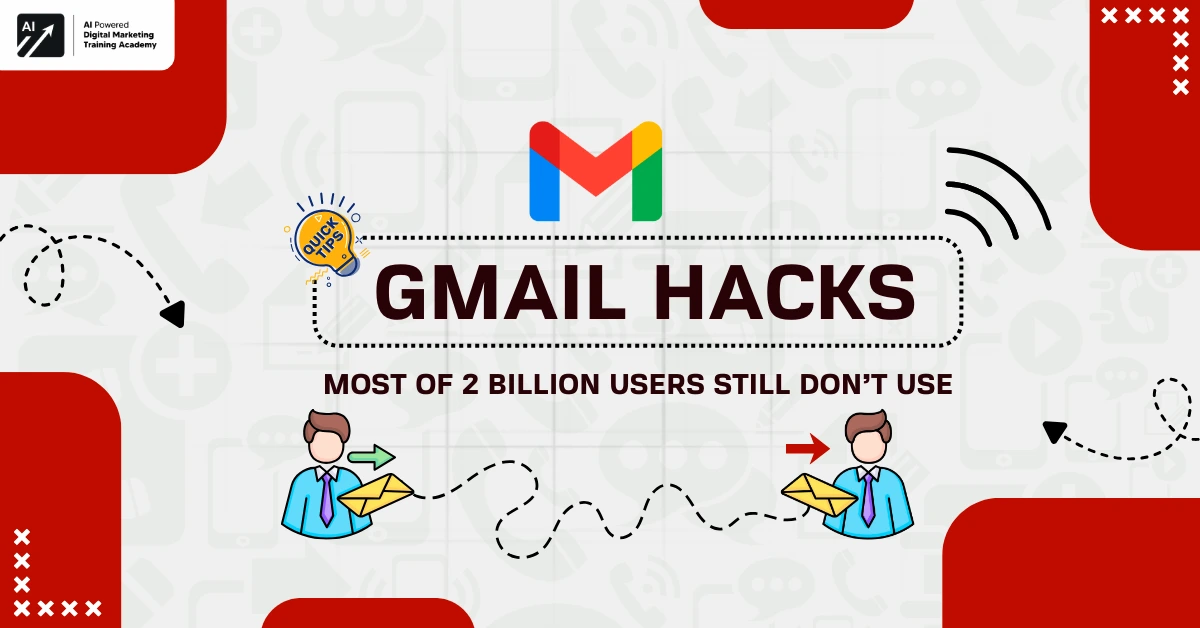

Gmail hacks can help users streamlining, achieve a highly-organized Gmail account and alleviate all stress around managing it. Why do nearly all of these Gmail users never learn these hacks? Over 2 billion people are users of Gmail and yet so many of those Gmail users are still struggling with problems like having an overflowing inbox; missing out on important emails; making mistakes with their daily email.
Most users check their Gmail frequently, primarily in the morning, while spending time browsing their inbox, deleting tons of messages from it, ignoring a lot of messages, and leaving their Gmail account with such confusion.
I followed the same routine for years and never explored Gmail settings. I never organized emails. My inbox decides my mood every day. One small mistake changed everything. I missed an important email because promotional emails buried it. That moment taught me one clear lesson: Gmail becomes powerful only when you learn how to use it properly.
Why Most People Use Gmail Without Control
Most users create a Gmail account and start sending emails immediately. Nobody explains Gmail features beyond sending and receiving emails. Over time, emails pile up, and confusion grows.
People assume email overload happens naturally. They just accept stress as normal and never question the system, also believe inbox chaos is part of modern life.
But Gmail already offers tools to control everything. Gmail does not fail users. Users fail to explore Gmail. Many of these features are officially documented in Google’s official Gmail Help Center.
Common Problems Gmail Users Face Daily
Many Gmail users experience the same daily issues:



- Inbox overload that never ends
- Important emails getting lost
- Fear of sending wrong emails
- Time wasted searching old messages
- Stress caused by unread notifications
- Missed follow-ups and replies
These problems do not come from Gmail. These problems come from not using Gmail features correctly. Once you learn the right features, Gmail starts working for you instead of against you.
Undo Sent Emails Using Gmail Undo Send Feature
Everyone makes mistakes while sending emails. A missing attachment, a spelling error, or a wrong recipient can cause instant panic. Gmail understands human error and offers a simple solution.
How Gmail Undo Send Saves You From Mistakes
Gmail holds your email for a few seconds before sending it fully. During this short time, Gmail shows an Undo option at the bottom of the screen. You can stop the email instantly.
This feature helps professionals avoid embarrassment. It helps students fix errors. It helps business owners protect relationships.
Steps to Enable Undo Send in Gmail
- Open Gmail
- Click the Settings icon
- Select See all settings
- Stay on the General tab
- Find Undo Send
- Turn it ON
- Set the delay to 30 seconds
- Save changes
This Gmail hack saves confidence, protects trust, and allows you to send emails without fear.
Remove Promotional Emails and Clean Your Gmail Inbox
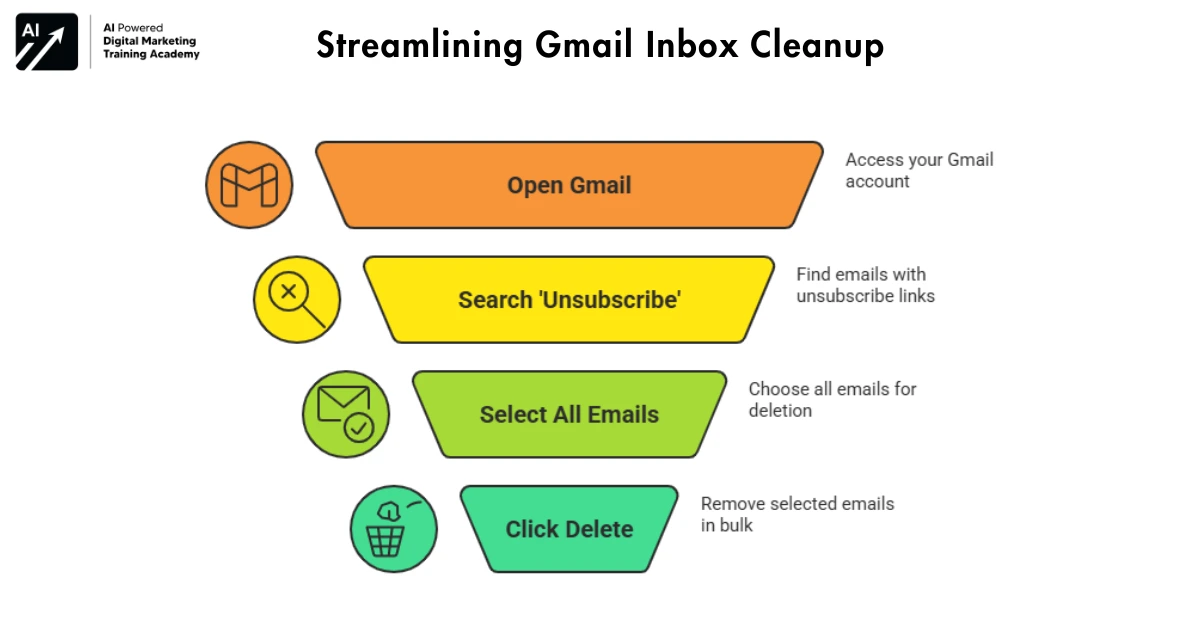
Promotional emails consume attention and space. They arrive every day. They hide useful emails. Over time, they destroy inbox clarity and peace. Many users waste hours deleting emails one by one. Gmail offers a faster way.
Simple Trick to Delete Promotional Emails Fast
Instead of manual deletion, Gmail allows bulk cleanup.
- Open Gmail
- Type unsubscribe in the search bar
- Gmail shows emails with unsubscribe links
- Select all emails
- Click Delete
This Gmail trick removes years of clutter within minutes.
Why a Clean Inbox Improves Focus
A clean inbox:
- Improves mental clarity
- Reduces anxiety
- Saves daily time
- Helps you find emails faster
- Improves productivity
The cleanliness of your inbox will play a direct role in both your quality of work and your amount of emotional well-being.
Use Secure Email for Sending Confidential Data
Emails often carry sensitive data. Salary details, contracts, documents, and private conversations need protection. Gmail confidential mode gives you control over who can access your message.
What Gmail Confidential Mode Allows You to Do
Gmail confidential mode:
- Blocks forwarding
- Stops copying
- Prevents downloading
- Restricts printing
- Adds expiry dates
Steps to Send a Confidential Email in Gmail
- Click Compose
- Write your email
- Click the lock button at the bottom
- Choose expiry date
- Enable password protection
- Send the email
This feature provided with Gmail creates an environment that fosters lockdown of your private data and secures it from hackers and other threats.
Gmail Offline Utility for When the Internet Is Down
Internet problems should never stop your work. Gmail provides offline access so you can continue without interruption.
Why Gmail Offline Mode Matters
Offline Gmail helps you:
- Read emails without internet
- Search old messages
- Draft replies
- Stay productive during travel
- Work during network failures
How to Enable Gmail Offline Mode
- Open Gmail
- Click Settings
- Choose See all settings
- Select Offline
- Enable offline mail
- Save settings
This Gmail hack supports consistency and reliability.
Work Faster With Gmail Keyboard Shortcuts
Using a mouse slows email work. Keyboard shortcuts reduce effort and speed up actions.
Must-Know Gmail Keyboard Shortcuts
- C – Compose new email
- / – Search inbox
- Shift + I – Mark as read
- Ctrl + Enter –Send email
- Ctrl + K – Insert link
- D – Open email in a new tab
- Shift + Ctrl + B – Add BCC
Shortcuts are used extensively to save you time and to eliminate the stress of performing repetitive daily tasks.
Email Scheduling from Gmail
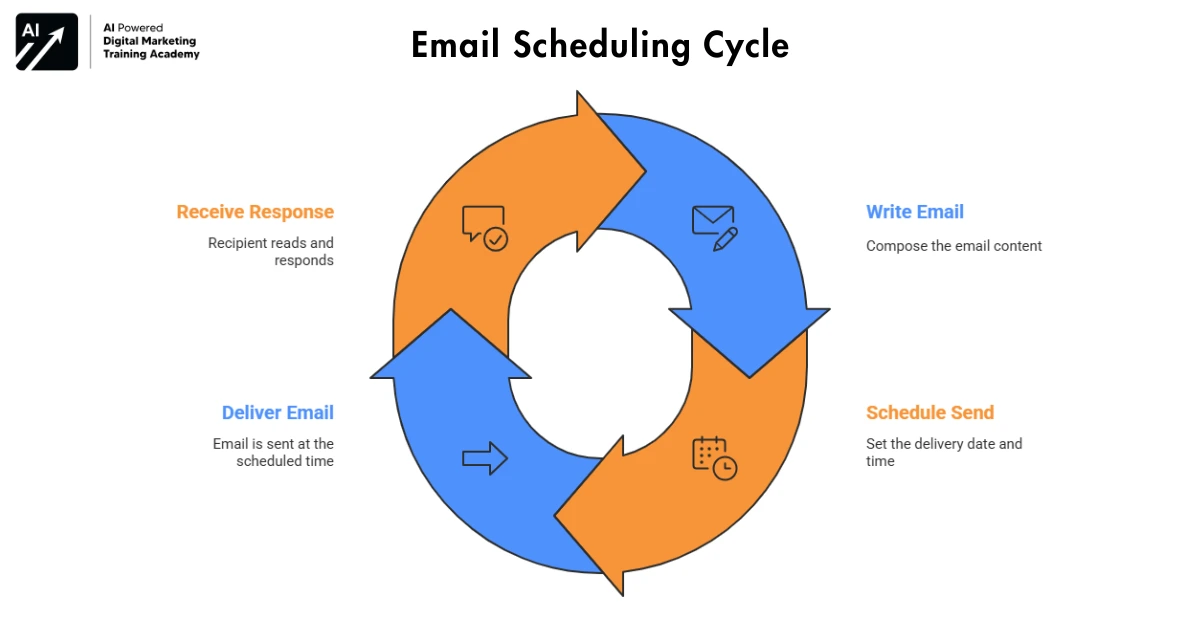
Gmail allows users to schedule the date and time for the delivery of emails so that messages can be sent at the optimal times to get a quick response from recipients. Timely email deliveries are beneficial if you want your emails delivered shortly after they are sent.
Why Schedule Emails?
Scheduling helps you:
- Avoid disturbing recipients
- Send emails during working hours
- Plan reminders early
- Stay professional
Saving Emails in Gmail, using Gmail to schedule emails
- Write the email
- Click the arrow next to Send
- Select Schedule Send
- Choose date and time
This Gmail feature improves clarity and respect.
Snooze Emails to Handle Them Later
Some emails need action later, not now. Snoozing helps you focus on what matters today.
How Snoozing Works in Gmail
Snoozed emails:
- Leave inbox temporarily
- Return at selected time
- Stay unread
Steps to Snooze Emails
- Hover over the email
- Click the clock icon
- Choose date and time
This Gmail hack keeps the inbox calm and intentional.
Organize Emails Using Gmail Labels
Folders limit organization. Labels offer freedom and flexibility.
Why Gmail Labels Improve Organization
Labels:
- Allow multiple tags
- Improve searching
- Keep inbox clean
- Separate work and personal emails
How to Create and Use Labels
- Select an email
- Click Labels
- Create or choose a label
Labels support long-term inbox control.
Save Time Daily Using Gmail Templates
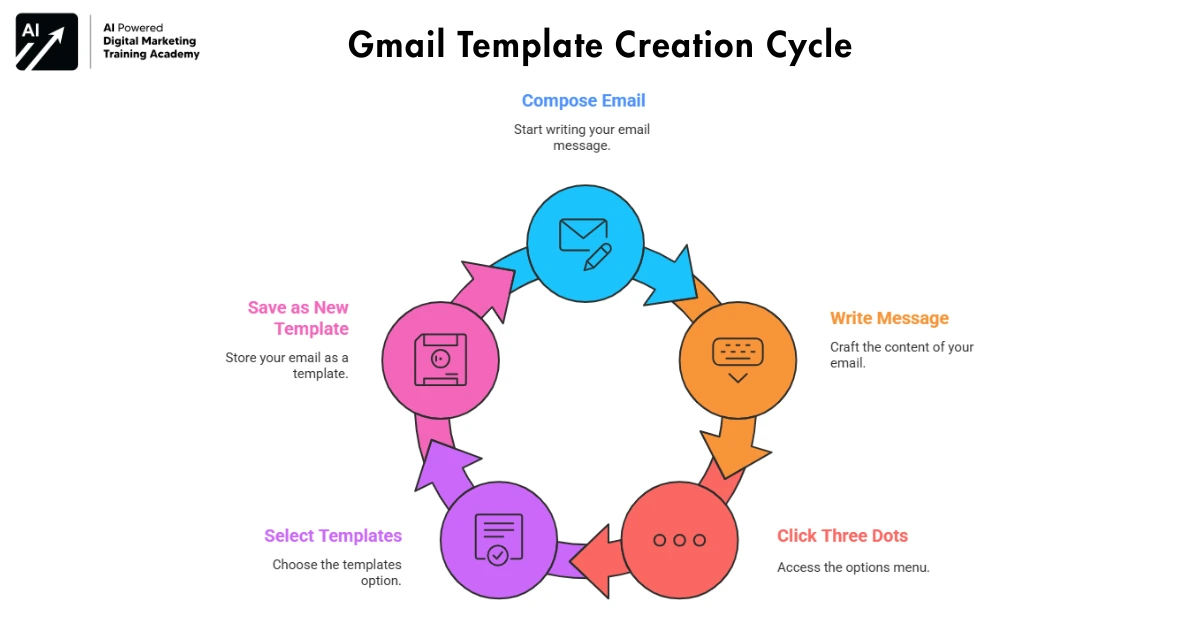
Repeating the same email drains time and energy.
When to Use Gmail Templates
Templates help with:
- Client replies
- Job applications
- Customer support
- Follow-ups
- Business responses
Steps to Create Email Templates
- Click Compose
- Write your message
- Click three dots
- Select Templates
- Save as new template
Templates increase speed and reduce effort.
Archive Emails Instead of Deleting Them
Deleting emails causes regret. Archiving offers safety and control.
Benefits of Archiving Emails
Archiving:
- Clears inbox
- Preserves emails
- Allows future search
- Keeps inbox light
Archiving creates confidence and peace
Real-Life Experience: Gmail Hacks Changed My Daily Work
Earlier, Gmail controlled my time. Notifications distracted me. Emails piled up every day.
After learning Gmail hacks:
- I reply faster
- Find emails easily
- Feel calm
- Avoided mistakes
- I work confidently
Small Gmail changes created big results.
How Gmail Hacks Improve Work-Life Balance
When inbox stress reduces, focus improves. Gmail hacks help you close work on time. They help you stop checking emails repeatedly. They support mental peace.A controlled inbox supports a controlled day.
Use Gmail Search Like a Power Tool
Most users scroll endlessly to find old emails. Gmail search works like Google search, but very few people use it properly.Instead of wasting time, you can find any email in seconds.
Powerful Gmail Search Operators You Should Know
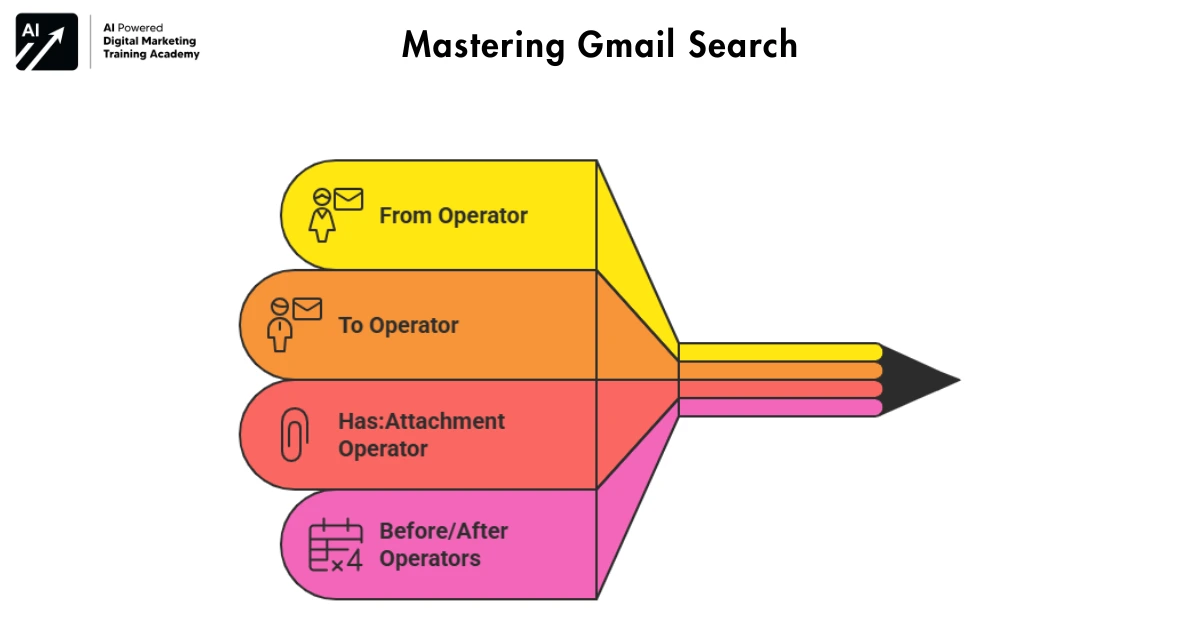
You can search emails using smart keywords:
- from: finds emails from a specific sender
Example: from: company name - to: finds emails sent to someone
Example: to:manager - has:attachment finds emails with files
Example: invoice has:attachment
- before: or after: finds emails by date
Example: Previously- January 1st 2024
The Use of Search Options in Google Mail to Organise your Email Account. Once you learn them, searching emails becomes effortless.
Automatically Sort Emails Using Gmail Filters
Manual sorting wastes time every day. Gmail filters automate your inbox without effort.
What Gmail Filters Can Do for You
Filters allow you to:
- Skip inbox for low-priority emails
- Apply labels automatically
- Mark emails as read
- Forward emails to another account
- Delete unwanted emails instantly
Once filters are set, Gmail works silently in the background.
How to Create Gmail Filters Step-by-Step
- Open Gmail
- Click the search bar arrow
- Enter sender or keyword
- Click Create filter
- Choose actions
- Save filter
This Gmail hack saves hours every month.
Turn Gmail Into a Task Manager
Emails often represent work tasks. Gmail integrates tasks directly inside the inbox.
Why Gmail Tasks Improve Productivity
Gmail Tasks help you:
- Convert emails into to-do items
- Track deadlines
- Avoid forgetting action items
- Separate tasks from emails
How to Create Tasks From Emails
- Open an email
- Click Add to Tasks
- Set due date
- Save
As a result, your inbox stays clean while your tasks stay organized.
Reduce Notifications and Stop Email Anxiety
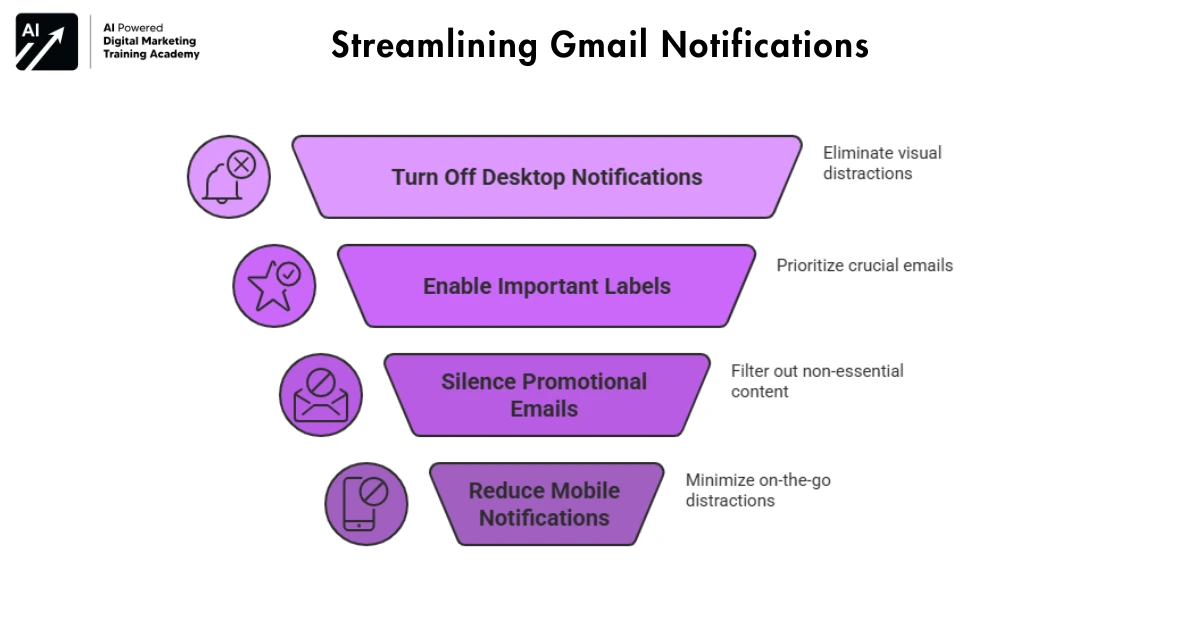
Constant notifications break focus and increase stress. Gmail allows full control over alerts.
How to Control Gmail Notifications Smartly
You can:
- Turn off desktop notifications
- Enable alerts only for important labels
- Silence promotional emails
- Reduce mobile notifications
A calm inbox creates a calm mind.
Use Multiple Gmail Accounts Without Logging Out
Many professionals manage work, personal, and business emails separately. Gmail allows easy switching.
Benefits of Using Multiple Gmail Accounts Together
- No repeated logins
- Faster email handling
- Better role separation
- Reduced mistakes
You stay productive without confusion.
Gmail Mobile App Hacks Most Users Ignores
Many users depend on mobile Gmail; however, most of them use only basic features.
Useful Gmail Mobile Features
On mobile, you can:
- Swipe to archive or delete
- Long-press to select multiple emails
- Search emails instantly
- Snooze messages quickly
These small habits save time even on busy days.
Gmail Security Settings You Must Enable Today
Email security protects identity, data, and reputation.
Essential Gmail Security Practices
Enable:
- Two-step verification
- Account activity alerts
- Security checkup
- Recovery email and phone
Security settings protect years of communication and trust.
Gmail Hacks for Students and Job Seekers
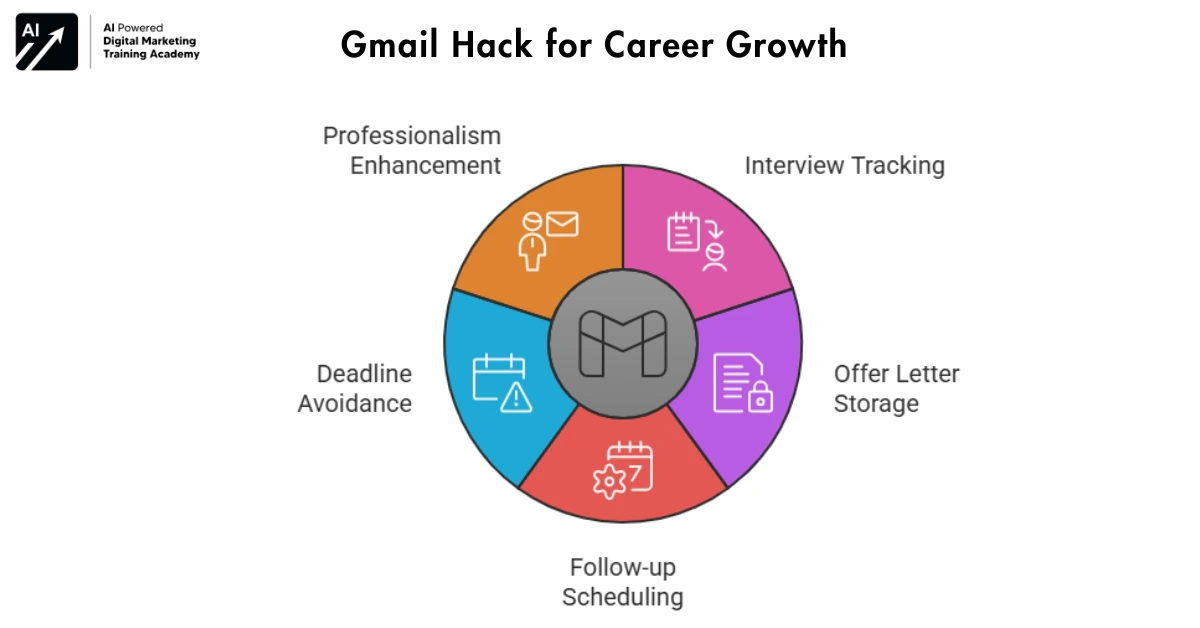
Students and job seekers rely heavily on emails for opportunities.
How Gmail Helps Career Growth
Gmail hacks help you:
- Track interview emails
- Save offer letters
- Schedule follow-ups
- Avoid missing deadlines
Professionalism can be enhanced with a properly managed inbox.
Hacks in Google Mail for Freelancers and Business Owners
Emails control client communication, payments, and trust.
Why Gmail Hacks and Organization Matter for Business
With Gmail hacks:
- Client emails never get missed
- Follow-ups become easy
- Communication stays professional
- Time gets saved daily
Your inbox reflects your brand.
Long-Term Benefits of Mastering Gmail
Learning Gmail hacks creates long-term impact.
You gain:
- Better focus
- Faster work
- Fewer mistakes
- Reduced stress
- Stronger communication habits
Small inbox habits shape better workdays.
Final Reminder On Gmail Hacks
Gmail already has everything you need.Most users never explore beyond the basics.
Once you take control:
- Gmail stops controlling you
- Your inbox feels lighter
- Your day feels organized
Start small. Apply one Gmail hack today.Over time, your inbox will transform completely.